
Enjoy the benefits of a premium membership!
Upgrade Account
-
TalkBass has been independent since 1998. Add your voice.
Create a free account to reply to discussions, view embedded media, and browse with fewer display ads.
Join free Log in
Want zero display ads or expanded classifieds tools? Compare plans.
You are using an out of date browser. It may not display this or other websites correctly.
You should upgrade or use an alternative browser.
You should upgrade or use an alternative browser.
More options
Who Replied?
Buffer sizes would be measured in miliseconds or samples, not seconds.
Different interfaces would indeed affect this as the roundtrip latency for each interface will be different and should be calculated with a loopback test independently.
Different interfaces would indeed affect this as the roundtrip latency for each interface will be different and should be calculated with a loopback test independently.
Yes, 4000 millisecondsBuffer sizes would be measured in miliseconds or samples, not seconds.
Different interfaces would indeed affect this as the roundtrip latency for each interface will be different and should be calculated with a loopback test independently.
If that's accurate (I don't think it is), your system is completely broken.
Roundtrip latency, even for a USB2 device shouldn't be any higher than about 8-12ms. Your corresponding buffer size should be measured in samples, and will fall into divisions of 8 (128 samples, 256 samples, 512 samples, etc.). By default it's almost certainly 128 samples. A system requiring higher than 512 samples is either drastically underpowered, which likely explains your problems, or the operator is trying to place too much DSP in the monitoring path which can be remedied by better operating practices.
EDIT: Look at it this way; You're saying a buffer size of 4 seconds, which would equate to 176,400 samples at a sample rate of 44,100hz. When the default for almost all DAWs is 128 samples (or 1,378 times less than what you're reporting) you should know that either something is wrong, or you're not reporting the right information. I assume it's the latter as virtually any modern computer would not experience performance that lousy, nor would any user find it functional.
Roundtrip latency, even for a USB2 device shouldn't be any higher than about 8-12ms. Your corresponding buffer size should be measured in samples, and will fall into divisions of 8 (128 samples, 256 samples, 512 samples, etc.). By default it's almost certainly 128 samples. A system requiring higher than 512 samples is either drastically underpowered, which likely explains your problems, or the operator is trying to place too much DSP in the monitoring path which can be remedied by better operating practices.
EDIT: Look at it this way; You're saying a buffer size of 4 seconds, which would equate to 176,400 samples at a sample rate of 44,100hz. When the default for almost all DAWs is 128 samples (or 1,378 times less than what you're reporting) you should know that either something is wrong, or you're not reporting the right information. I assume it's the latter as virtually any modern computer would not experience performance that lousy, nor would any user find it functional.

My guess would be buffer size is set to 4096 (samples) and the OP is assuming it means milliseconds. Bump this down to 128 (even 256) and see if the issue goes away.
Could be. Although, assuming we're dealing with 44.1, that would be just shy of a tenth of a second (0.0928), or roughly 93ms. That seems alarmingly high. If that's what's required there are potentially larger system-wide issues at play here.My guess would be buffer size is set to 4096 (samples) and the OP is assuming it means milliseconds. Bump this down to 128 (even 256) and see if the issue goes away.
might not be what's required, might just be how it got set either by accident or because details about what it does weren't known at the time and 4096 seemed like a good number to use... anyway, just theory at this point. interested to hear more on this mystery as it develops!

Cool Edit buffer settings are a software setting. I used CEP for years as my primary DAW and the default buffer settings never caused any problems.
What we suspect is causing the issue is the buffer setting in your recording hardware. You should be able to get to your audio device's buffer settings in the control panel app that installs along with the drivers for the audio device. There may be an icon in the system tray that you have to double click to get there...
What we suspect is causing the issue is the buffer setting in your recording hardware. You should be able to get to your audio device's buffer settings in the control panel app that installs along with the drivers for the audio device. There may be an icon in the system tray that you have to double click to get there...
The trick here is that a lot of interfaces, especially consumer grade ones have the sample rate, buffer size, word clock, etc. all tied to the software settings. You change a software setting and they both should change.What we suspect is causing the issue is the buffer setting in your recording hardware.
Cool edit is older than ASIO or outboard soundcards being "a thing". It doesn't have any setting which translates to "buffer size in samples". If the sound card doesn't have its own settings, you're stuck with this:
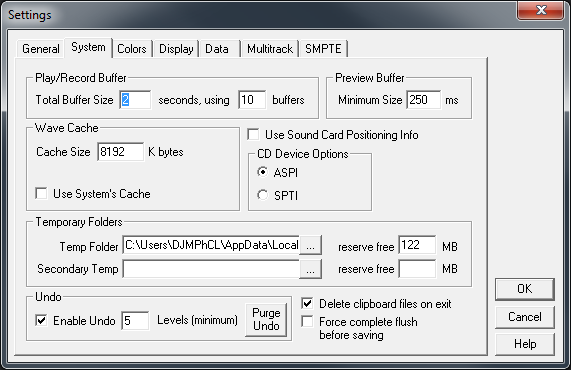
CEP help file:
Play/Record Buffer
Different sound card drives can require different memory buffer settings. Cool Edit Pro’s default settings should work find (sic) for most sound cards, but if you hear “choppiness” (skips or dropouts) in recording or playback, you may need to adjust the buffer size or number of buffers used.
Use the two fields in the Play/Record Buffer area to reserve more memory for recording and playback by entering a higher buffer size, both in seconds and a number of buffers.
Keep in mind that while a greater buffer size will allow for increased multitasking when audio is being played, it does so at the expense of taking more of your computer’s memory.
-----------------------
Note 4: Optimizing multitrack performance
Background mixing, which is the process Cool Edit Pro uses to enable you to have so many tracks playable at one time even on slow computer systems, offloads some of the CPU and hard drive speed requirement for mixing during playback by mixing what it can ahead of time. However, with larger and more complex sessions, your computer may become so occupied with mixing and/or real-time effects that you experience drop-outs during multitrack playback.
Below are the common reasons for drop-outs and what to do about them.
Too many tracks playing at once and not enough hard drive bandwidth to handle them.
If you’re only playing back to one or two output devices, but have lots and lots of tracks, drop-outs may occur because of limitations on how much data can be transferred to and from your hard drive(s). This is the specific case that background mixing was meant to address.
You should let the background mixing feature mix ahead some before hitting Play. Try increasing the Mix Priority (right-click on the Mix Gauge) to let Cool Edit Pro mix ahead faster so you can hit Play sooner without any drop-outs.
To help prevent drop-outs when the Mix Gauge approaches zero during playback, try increasing the Playback Buffer Size in Options > Settings > System. Anything above about 4 seconds is overkill though. You can also try increasing the Mix Ahead amount. If you set Mix Ahead to Entire Session, and wait for the Mix Gauge to go bright green, the entire session will be pre-mixed, and you should never get drop-outs.
Too many real-time track effects or bus effects and not enough CPU power to handle them.
To offload some of the CPU usage requirements during playback, you can lock CPU intensive effects on their track. When you press Lock on a track containing effects, the entire track is pre-effected at that time. You could also help buffer the data requirements for the effects by increasing the Playback Buffer Size (in Options > Settings > Multitrack) up to 2 seconds. Note however that increasing this time increases the lag time between the changes you make live and hearing those changes. You can also try lowering the Mix Priority (right-click on the Mix Gauge) to prevent Cool Edit Pro from using more CPU cycles trying to mix ahead more than is necessary.
Alternately, you could increase the Mix Priority to Highest and set Mix Ahead to Entire Session, and wait for the entire background mix to complete before hitting Play.
As a last resort, if you don’t wish to wait for the Mix Gauge to reach full and mix the entire session, you could disable background mixing entirely to free up a marginal amount of the CPU and hard drive bandwidth. But this only makes sense if nearly all tracks have real time effects on them, or are routed to busses.
Outputting to too many devices at once and not enough hard drive bandwidth to handle them.
When outputting to multiple devices, there isn’t much to be done about the raw amount of data streaming over the bus from the hard drive(s), and the amount of data being sent to the sound card. If you’re outputting to the sound card as 16-bit audio, you can reduce this amount of data by setting Pre-Mixing to 16-bit in Options > Settings > Multitrack, and limiting playback to 16-bit in Options > Device Properties > Wave Out for each of the multitrack devices you’re using.
You can also reduce some CPU overhead by disabling dithering in the same dialog. Increasing the Playback Buffer Size to no more than 4 seconds may help as well if your system is right at its limits. You could also direct everything to a single output device to speed things up while monitoring.
CEP help file:
Play/Record Buffer
Different sound card drives can require different memory buffer settings. Cool Edit Pro’s default settings should work find (sic) for most sound cards, but if you hear “choppiness” (skips or dropouts) in recording or playback, you may need to adjust the buffer size or number of buffers used.
Use the two fields in the Play/Record Buffer area to reserve more memory for recording and playback by entering a higher buffer size, both in seconds and a number of buffers.
Keep in mind that while a greater buffer size will allow for increased multitasking when audio is being played, it does so at the expense of taking more of your computer’s memory.
-----------------------
Note 4: Optimizing multitrack performance
Background mixing, which is the process Cool Edit Pro uses to enable you to have so many tracks playable at one time even on slow computer systems, offloads some of the CPU and hard drive speed requirement for mixing during playback by mixing what it can ahead of time. However, with larger and more complex sessions, your computer may become so occupied with mixing and/or real-time effects that you experience drop-outs during multitrack playback.
Below are the common reasons for drop-outs and what to do about them.
Too many tracks playing at once and not enough hard drive bandwidth to handle them.
If you’re only playing back to one or two output devices, but have lots and lots of tracks, drop-outs may occur because of limitations on how much data can be transferred to and from your hard drive(s). This is the specific case that background mixing was meant to address.
You should let the background mixing feature mix ahead some before hitting Play. Try increasing the Mix Priority (right-click on the Mix Gauge) to let Cool Edit Pro mix ahead faster so you can hit Play sooner without any drop-outs.
To help prevent drop-outs when the Mix Gauge approaches zero during playback, try increasing the Playback Buffer Size in Options > Settings > System. Anything above about 4 seconds is overkill though. You can also try increasing the Mix Ahead amount. If you set Mix Ahead to Entire Session, and wait for the Mix Gauge to go bright green, the entire session will be pre-mixed, and you should never get drop-outs.
Too many real-time track effects or bus effects and not enough CPU power to handle them.
To offload some of the CPU usage requirements during playback, you can lock CPU intensive effects on their track. When you press Lock on a track containing effects, the entire track is pre-effected at that time. You could also help buffer the data requirements for the effects by increasing the Playback Buffer Size (in Options > Settings > Multitrack) up to 2 seconds. Note however that increasing this time increases the lag time between the changes you make live and hearing those changes. You can also try lowering the Mix Priority (right-click on the Mix Gauge) to prevent Cool Edit Pro from using more CPU cycles trying to mix ahead more than is necessary.
Alternately, you could increase the Mix Priority to Highest and set Mix Ahead to Entire Session, and wait for the entire background mix to complete before hitting Play.
As a last resort, if you don’t wish to wait for the Mix Gauge to reach full and mix the entire session, you could disable background mixing entirely to free up a marginal amount of the CPU and hard drive bandwidth. But this only makes sense if nearly all tracks have real time effects on them, or are routed to busses.
Outputting to too many devices at once and not enough hard drive bandwidth to handle them.
When outputting to multiple devices, there isn’t much to be done about the raw amount of data streaming over the bus from the hard drive(s), and the amount of data being sent to the sound card. If you’re outputting to the sound card as 16-bit audio, you can reduce this amount of data by setting Pre-Mixing to 16-bit in Options > Settings > Multitrack, and limiting playback to 16-bit in Options > Device Properties > Wave Out for each of the multitrack devices you’re using.
You can also reduce some CPU overhead by disabling dithering in the same dialog. Increasing the Playback Buffer Size to no more than 4 seconds may help as well if your system is right at its limits. You could also direct everything to a single output device to speed things up while monitoring.
Yeah, very
Very confusing to me. Based on my screen shot above, maybe my buffers are too big?Cool edit is older than ASIO or outboard soundcards being "a thing". It doesn't have any setting which translates to "buffer size in samples". If the sound card doesn't have its own settings, you're stuck with this:
View attachment 1075106
CEP help file:
Play/Record Buffer
Different sound card drives can require different memory buffer settings. Cool Edit Pro’s default settings should work find (sic) for most sound cards, but if you hear “choppiness” (skips or dropouts) in recording or playback, you may need to adjust the buffer size or number of buffers used.
Use the two fields in the Play/Record Buffer area to reserve more memory for recording and playback by entering a higher buffer size, both in seconds and a number of buffers.
Keep in mind that while a greater buffer size will allow for increased multitasking when audio is being played, it does so at the expense of taking more of your computer’s memory.
-----------------------
Note 4: Optimizing multitrack performance
Background mixing, which is the process Cool Edit Pro uses to enable you to have so many tracks playable at one time even on slow computer systems, offloads some of the CPU and hard drive speed requirement for mixing during playback by mixing what it can ahead of time. However, with larger and more complex sessions, your computer may become so occupied with mixing and/or real-time effects that you experience drop-outs during multitrack playback.
Below are the common reasons for drop-outs and what to do about them.
Too many tracks playing at once and not enough hard drive bandwidth to handle them.
If you’re only playing back to one or two output devices, but have lots and lots of tracks, drop-outs may occur because of limitations on how much data can be transferred to and from your hard drive(s). This is the specific case that background mixing was meant to address.
You should let the background mixing feature mix ahead some before hitting Play. Try increasing the Mix Priority (right-click on the Mix Gauge) to let Cool Edit Pro mix ahead faster so you can hit Play sooner without any drop-outs.
To help prevent drop-outs when the Mix Gauge approaches zero during playback, try increasing the Playback Buffer Size in Options > Settings > System. Anything above about 4 seconds is overkill though. You can also try increasing the Mix Ahead amount. If you set Mix Ahead to Entire Session, and wait for the Mix Gauge to go bright green, the entire session will be pre-mixed, and you should never get drop-outs.
Too many real-time track effects or bus effects and not enough CPU power to handle them.
To offload some of the CPU usage requirements during playback, you can lock CPU intensive effects on their track. When you press Lock on a track containing effects, the entire track is pre-effected at that time. You could also help buffer the data requirements for the effects by increasing the Playback Buffer Size (in Options > Settings > Multitrack) up to 2 seconds. Note however that increasing this time increases the lag time between the changes you make live and hearing those changes. You can also try lowering the Mix Priority (right-click on the Mix Gauge) to prevent Cool Edit Pro from using more CPU cycles trying to mix ahead more than is necessary.
Alternately, you could increase the Mix Priority to Highest and set Mix Ahead to Entire Session, and wait for the entire background mix to complete before hitting Play.
As a last resort, if you don’t wish to wait for the Mix Gauge to reach full and mix the entire session, you could disable background mixing entirely to free up a marginal amount of the CPU and hard drive bandwidth. But this only makes sense if nearly all tracks have real time effects on them, or are routed to busses.
Outputting to too many devices at once and not enough hard drive bandwidth to handle them.
When outputting to multiple devices, there isn’t much to be done about the raw amount of data streaming over the bus from the hard drive(s), and the amount of data being sent to the sound card. If you’re outputting to the sound card as 16-bit audio, you can reduce this amount of data by setting Pre-Mixing to 16-bit in Options > Settings > Multitrack, and limiting playback to 16-bit in Options > Device Properties > Wave Out for each of the multitrack devices you’re using.
You can also reduce some CPU overhead by disabling dithering in the same dialog. Increasing the Playback Buffer Size to no more than 4 seconds may help as well if your system is right at its limits. You could also direct everything to a single output device to speed things up while monitoring.
Check the buffers on the "system" tab too. Refer to CEP help for what they mean, use default settings and go from there...


